In this video, I discuss how I am refining my approach to being consistent. I am no longer focused on consistently posting on my blog daily but instead consistently minding my priorities and waiting until I have time to create a higher-quality post.
Back to the Basics
I am glad I decided to backpedal from trying to export Adobe Substance Modler files into Adobe Substance Painter and just focus on getting better at Modeler. I like how this more advanced tutorial made use of the boolean functionality, symmetry, and repetition. This video also showed some simple yet creative ways to quickly create dynamic shapes only using the clay and erase tool.
When it feels like you are getting nowhere and are not getting the results you want, you need to look for the things that are working out. You can pause, reevaluate your given circumstances, and tweak your approach.
Over the past three posts, I have been staring at a brick wall. Some Adobe Substance Painter introduction videos caught my eye and I thought I’d like to learn how to work with that application next. However, I have had some issues finding a way to export a file from Adobe Modeler to Adobe Painter. I have read content and watched videos that suggest you should be able to do that, but I just can’t seem to get it to work.
Focus on What is Working
Identify the positive results that you have had and then focus on those.
So, as I was viewing the files that I exported from Adobe Substance Modler (OBJ, FBX) I noticed that those files were associated with Adobe Substance Stager. Sure enough, when I double-clicked on them they opened in Adobe Stager. The Ocean Volcano Diorama I built came up small and that discouraged me. However, I took a breath paused, and stepped away and when I went to bed last night I asked myself what could my next step be. When I woke up the answer was provided by my subconscious. Look at what you can do in Stager because that is where your files are working. In addition to that I had another idea. I have by no means mastered working in Adobe Substance Modeler and I enjoy working in that. So after I look at how things are opening in Stager and get comfortable with how layers carry over, I could go back and do more advanced builds in Adobe Substance Modeler.
I feel like this second option is my path with heart.
I read this series at a formative time in my life and it had a big impact on how I view learning and knowledge in general. There is a very big emphasis in these books on finding the path with heart or choosing the path that will best serve you. In other words, be clear about what you want to accomplish and then give it your all. Yesterday I made fun of Using the Power of Your Subconscious mind because it sounds like a Pseudoscience book that tells you to take drugs and align your Chakras. (I have nothing against the concept of Chakras, I can do a separate post on those if there is any interest in that.) At any rate, my point is that this book (The Don Juan one) IS about Carlos Castenada’s experiences consuming hallucinogenic Peyote cacti in the deserts of Central America. So, as much as I like these books and enjoy the teachings and perspectives they provide, they are not far from new-age pseudoscience.
Now, for the record I never ate Payote, nor have I taken any mescaline, but the author, Carlos Castaneda did. According to the books, he also drove his car to Central America and spent time with the Brujo, Native American Shamans, or Sorcerers. He spent a good deal of time recording their practices. Although many criticize the books for not being true anthropology, they are still a very interesting read and provide colorful insight into the perspectives and traditions of that part of the world.
OK, so back to why I brought that book up at all. A person of knowledge will follow the path with heart. They will pursue what interests them above all other things. A person of knowledge understands that people don’t learn from hearing other people explain something. If you want to learn about something there is no replacement for first-hand experience. Do you see what I did there? I took some crazy new-age hippy novel written by a charming man who was on cactus, mushrooms, and all sorts of trippy datura roots and I made this about learning, I made it about how to improve yourself. Get out there and try something new. I am not recommending drugs, I am recommending experiences. (Not necessarily drug-related experiences.)
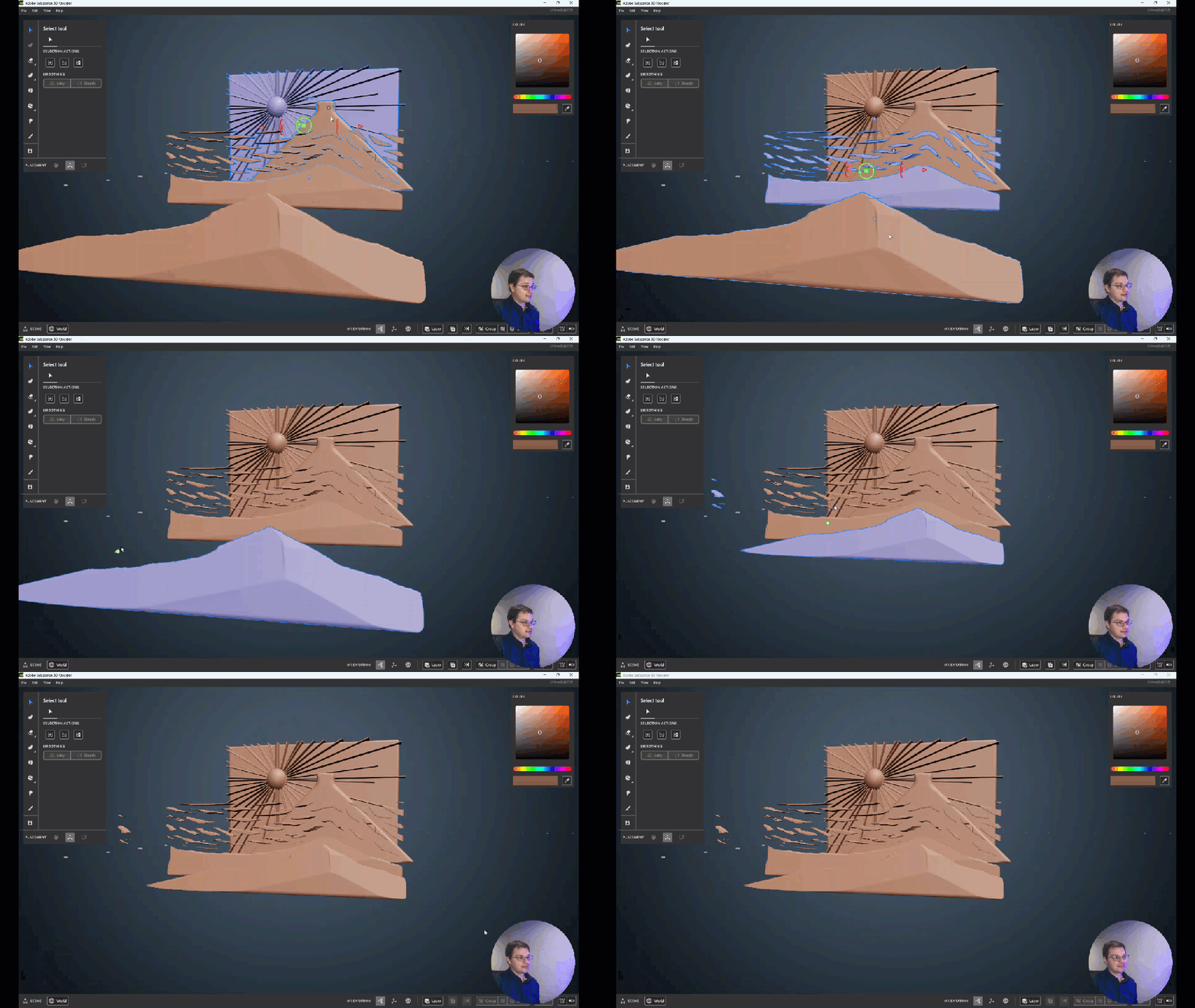
Today I continued work on the 2D Diorama that I started yesterday.
I still feel a bit like a fish out of water… or more like a one-legged penguin running in the Amazon, but I am moving forward and making more valuable mistakes. (moments of learning.)
Animated Gifs
Here are a couple animated gifs of today’s progress.
Videos
Here are videos of the process in order of completion.
A 2D diorama builds over several days in the virtual 3D space. Here is what I came up with from day 1.
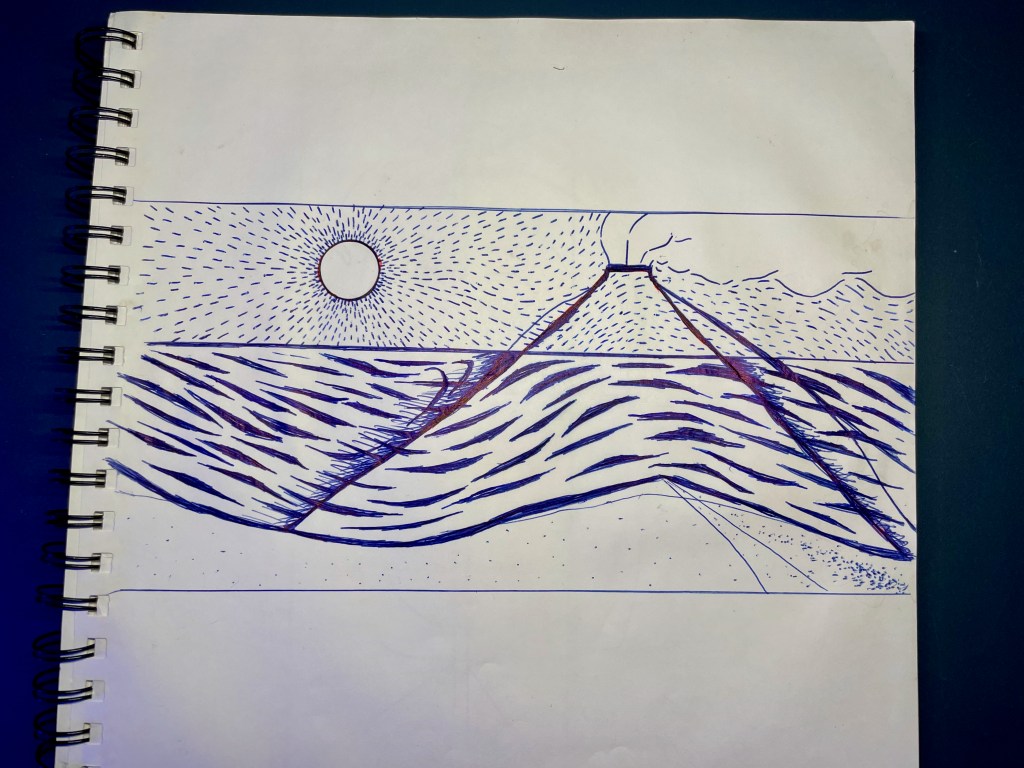
Here is an image of the pen drawing I reference in the VLOG video. I made a painting from this once but it didn’t capture the currents in the water and the air like designed. I am hoping to catch that more here.
In the first video, I set up some blank plates that I plan to use to create my Diorama.
In retrospect, it might have been better to set each plane on a unique layer per the Boolean intersect issues I had in the second video. Or, I just don’t really understand how those Boolean intersects yet. (Bahoolian!)
In the second video, you can taste my pain as I struggle with getting the Boolean to intersect not delete my entire piece. I also need help with camera placement and zooming in on my work. In other words, if you want to skip a video this is the one to skip! See the pink triangle!? That’s how you know it’s the Boolean Intersect action.
In the final video, I get the background and mountain plate set.
Today we are looking at expectations when exporting out of Adobe Substance 3D Modeler. After you have a raw sculpt you are going to want to add texture, paint or somehow render the 3D form. I have a feeling this will start to answer my question about resolution and scale. If you have to export to a mesh to use a 3D form in Painter, then that is like rendering a vector file in Illustrator to more of a finalized file, like a PNG or JPG. These are my thoughts at this point and they are on the table for discussion.
Either way, this is Adobe so, as you can imagine, there are a ton of export options.
How to Export
This is the last video from the Basics series on Adobe Substance Modeler.
Output
Export Units Used
This is the same as importing. Currently, you go to the File drop-down and select “Export”, or (Ctrl+Shift+E).
Export Format
There is a long list of files you can export to:
FBX
GLB
GLTF
OBJ
USD
USDA
USDZ
USDC
I am curious about which of these files works better for what purpose or for which other programs. I suppose that will be a follow-up topic that I will discover later in my 30-Day+ 3D learning journey.
Export Units Used
Here is my answer to my scale question. When you export you can set Unite Scale. It looks like Modeler defaults to Meters currently and has many other measurement units. I wonder how specific you can be here.
Export Unit options:
Millimeters
Centimeters
Meters (default
Kilometers
Inches
Feet
Yards
Miles
Export Content
This is a nice option that will reduce a lot of duplicating and editing files.
Export Content options:
All Layers
Selected Layer
Topology
This function is a new concept to me but it really makes sense that you would need to choose how the surfaces are created.
Polygon Type
Raw Triangles – This will give you the densest polygon mesh. So this is a good place to start because this will help you retain the most resolution when rendering out to a usable file. The downside to this would most likely be larger file sizes as is the case with higher resolution.
Triangles and Quads – This Topology will allow you to select a target of the density of the polygons (poly count) on a slider.
UV-mapped Triangles – This option will give you a re-meshed output with automatic UVs.
Now I am going to be completely honest here and share that I wasn’t really clear on what UV-Mapped Triangles meant. I found some information on what a UV map is and it appears to be just a 2D representation of a 3D object. Like when you get a kit toy plane printed on a perforated card stock and you pop it out and fold it on the lines to build a 3-dimensional toy. Or another example of a UV Map would be this one of a true globe of Earth:
For a more relevant example of UV-Mapping, I found this tutorialon how to do this in Photoshop and Illustrator which really helped me wrap my head around this. (See what I did there? Wrapping a 2d image around a 3D space… eh? Wrap my head … anyway)
Hard Surface – better used for flat planes and sharp corners.
Organic – Better used for rounded edges, less rigid, amoeboid shape.
The video stated that the hard surfaces option really gives a better resolution than just the triangles option mentioned first at the top under Polygon Type.
Additional Options
Overall these are options that will be available or not depending on how you export. For example, you can export with instances normally, but you can not export with instances if you are using the UV-Mapped Triangle option as your Polygon Type.
Work Cited
I created these scenes directly after learning from this video
Today was all about what content can be imported into modeler and your options with each import type. For the most part, importing means that you are adding a pre-made item. Currently, items are imported on the desktop application using the File dropdown menu.
Import Scene
This option allows you to import other modeler scenes to your current modeler scene. Select File > Import Scene (or Ctrl + O), then you can click and open any *.smod file. This will bring all the content in the saved file and add it to the current file. Currently, you can also import files from Adobe Medium, but you have to select the drop-down to the right of the File Name on the bottom right of the scene open window.
Import Meshes
This topic was already discussed when we looked at stamps. Importing a mesh is another way of saying that you are importing a new stamp. (However, if you import the mesh as a stamp then you can use it more as a tool.) If you import the mesh in this way it appears to scale as an object called a “mesh”. Go to File > Import Mesh (Ctrl + Shift + M).
Mesh files accepted:
OBJ
FBX
USD
GLTF
Mesh files can not be edited with sculpting tools until they have been “Converted To Clay” in the actions menu. (Left Mouse Click)
Welcome to Day 8 of my 30-day 3D Design Challenge. Today I am looking at instancing and right away I can see how useful this function will be in 3D design. I was thinking and I can’t quite think of an equivalent to this in 2D design in Photoshop. We are truly entering into a uniquely 3D design element here.
You can create a single object and then create a link and mirror it. You can place it where you want and then when you alter it with a tool all the other “instances” of that object also change in the same way. So this is very similar to Semetry but the mirrored objects can be placed in arbitrary positions. If you think about it this really can only be done in the 3D environment.
Instancing also applies to groups. So you can create a group of objects or layers and then choose to make a link and then reproduce the group using instancing. Watch as I trip over my toes and listen as I stumble over my tongue!
Welcome to Day 7 of my 30-day 3D Design Challenge. I watched the instructional video on Symmetry and repetition two nights ago and I decided that the video begins adding too many steps for my understanding of the topic of Symmetry and Repetition. When the video jumped to adding symmetry and repetition at the layer level, then the multiple layers global, and then upped it to the group level I had a feeling that this is something I understand right now but someday soon I will be working in a project and get stuck or confused about what I am controlling. So, I have decided to break this topic into two parts. I covered Part 1 – Symmetry and Repetition on the layer level yesterday and Part 2 – Symmetry and Repetition on the multiple layer global level with nothing selected and also the group level on Day 07.
Now that I have completed day 07, I feel symmetry and repetition on the group level are not as confusing as I feared. The point is that:
There is no difference editing semetricly on multiple layers on the global level or having those layers grouped into a single layer.
The true benefit of having layers ungrouped is that you can select a specific layer and then modify that layer without affecting the other layers.
In the video I keep falling into “trainer mode” and then I realize I don’t know how to do this yet! I promise I’m not trying to man-splain…
Welcome to Day 6 of my 30-day 3D Design Challenge. I watched instructional video #7 in the list last night so that my subconscious mind could start generating ideas for today. What I decided is that the video quickly begins adding steps under the topic of Symmetry and Repetition. When the video jumped to adding symmetry and repetition at the layer level and then upped it to the global layer level just to switch over to the group level I had a feeling that “…this is something I understand right now but someday soon I will be working on a project and get stuck or confused about what I am controlling“. In other words, I felt a bit like I was peering into the 5th dimension for the first time. Maybe, this has to do with how the content was designed or how the video was created but it probably has more to do with my lack of experience with 3D design. So, I have decided to break this topic into two parts. I will cover
Day 6 – Part 1 – Symmetry and Repetition on the layer level and on Day 06
Day 7 – Part 2 – Symmetry and Repetition on the group level on Day 07
Part 1 – Symmetry and Repetition on the layer level
When the video starts the instructor explains where symmetry can be found at the bottom right of the screen and in the Actions menu when you right-click. What is interesting is that symmetry is set per layer but then it can also affect your design globally, at the scene level with nothing selected. I think this second part is why adding the group symmetry concept with this same video was just too much for me in a single lesson, but again I am a NOOB with this 3D design stuff, so I want to be very clear about that. It’s not the Adobe instructor, it’s me. I have kept the demonstration today in the 3 separate raw videos.
Video 1
Video 2
Video 3
Thanks so much for watching! Learning is not easy so thanks for the support!
Tools
Symmetry
Radial Symmetry
Repetition
Radial Repetition
David Kolmer
I generated this content after watching this amazing instructional video by Adobe:
The stamps live next to the primitives as a shape option for the clay tool and the erase tool.
Stamps can be in any shape! Also, Adobe Modeler comes with preinstalled stamps!
Check out what I came up with in the video, stay tuned below for more detailed step-by-step information on how stamps work.
Video of my creating
What are Stamps?
Stamps are based on meshes rather than the math of the primitives (essential tools for clay building) The outcome is that there are fewer options to change the Dynamics of the shape (like Taper, Fillet, Round, etc.) You can see above that Size is the only option to change the Dynamics of the stamp tool selected. Although, Single, pressure, and steady are still options which is a great thing.
There are two ways to make Stamps
First Way to Make a Stamp
You can make a stamp from a layer.
Select the layer
Right-mouse click to open the Actions menu.
Select the Stamp Icon
I want to point out that if you are working in VR the stamps in the tray are previewed in 3D. I just think that is amazing.
You can click on the create stamp icon anytime you are editing, because when you are editing you have a layer selected.
Second Way to Make a Stamp
You can import stamps as mesh files inside the app.
Modeler currently supports importing stamp meshes files in these formats:
OBJ
FBX
USD
GLTF
IMPORTANT: These files must be added through the app, you can not just dump them into the Window where MOdeler stores stamps. (Adobe > Adobe Substance 3D Modeler > Stamps)






 Improvement Dave